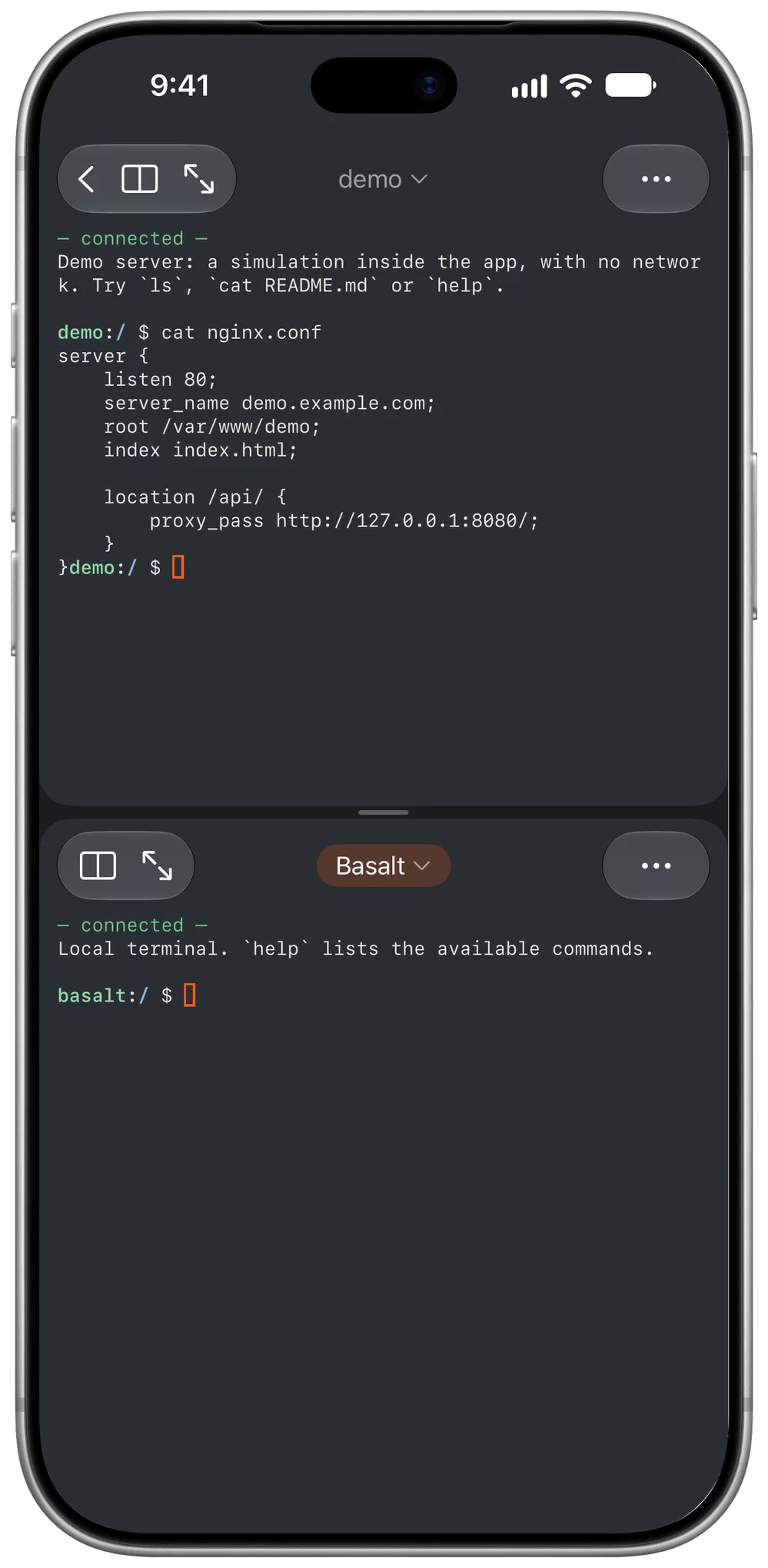
You can work on two things at once without leaving the app: two servers, a terminal and its files, or the terminal and the editor.
Two panes: the demo server and a local terminal
Split the window
From the session menu, at the top right, Split window opens a second pane. In the server list, touch and hold one and choose Open beside. The active pane has a border in its server's colour, so you always know where your typing will land.
Drag the divider to share out the space.
Swap panes puts one in the other's place.
On iPhone, panes stack in portrait and sit side by side in landscape.
On iPad
Besides the two panes, each server can have its own window, and the app works in Split View and Stage Manager like any other.